
Compatibility: Ventura, Sonoma, Tahoe
Changes
-
- Changes from a driver/service to actual app located among Applications. Needs to be manually started when used.
- Supports MAC OSX Ventura and Sonoma.
Installation
-
- Make sure to deactivate/uninstall any previous C-Pen Core version on your computer.
- Download and unzip the CPenCore app using link:
C-Pen Core 1.11b12 (MAC)
- Copy CPenCore.app into your MAC Application folder.
- To get to Application folder, open Finder, in top bar menu choose Go and select Applications.
Launch the application
To launch CPenCore.app - open Launcher and select CPen Core. When running you can select to pin it to the Dock.
Allow C-Pen Core to input text
If the scanned text does not appear in the open document when scanning - make sure that C-Pen Core is allowed to paste text.

-
- Open System Preferences/Security & Privacy - Privacy tab.
- Select Accessibility.
- Make sure C-Pen Core is enabled.
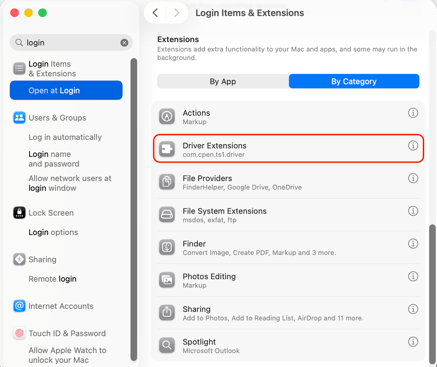
For MAC-OSX Tahoe version, Driver extensions must be enabled.
- Open System Settings
- Open login items
- Scroll down to Extensions
- Click the (i) symbol beside Driver extensions and make sure it is enabled.
Supports 100+ languages.
Install for free to make sure your language is supported.