
It is important that the steps below are followed and that update compatibility is secured prior to making any update.
AN UPGRADE CAN NOT BE REVERTED!
⚙️ Before you upgrade
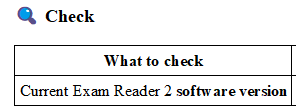
Go to Settings/System Information/Version and check Software version.
⬆️ Upgrade options
Each upgrade may take 5-20 minutes to complete.
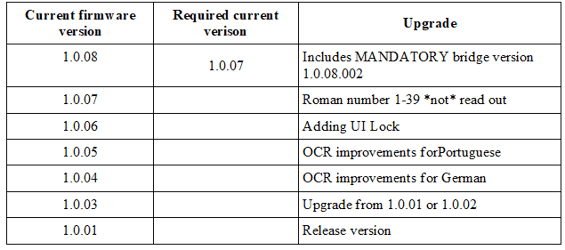
Exam Reader 2 upgrades are all full upgrades and any version can be updated to any higher/newer version.
📦 Upgrade to 1.0.08.016
Upgrade from version 1.0.07 and lower versions
Target software version: 1.0.08.016
Mandatory bridge version: 1.0.08.002
Download: ER2-1.0.08.016
If the device already show to have version 1.0.08, but Welsh/Cymraeg is not an available language choice you can run this update *without* the bridge. run the 1.0.08.016 update directly.
To reach software version 1.0.08.016, you must complete two updates in order. The actual update is 1.0.08.016, but the mandatory bridge update 1.0.08.002 must be installed first. Do not skip the bridge update. Upgrades cannot be reverted.
📝 1.0.08 release notes
The 1.0.08 release line includes the mandatory bridge version 1.0.08.002. Install the bridge before installing the actual update.
1.0.08.016
- Added Welsh/Cymraeg scan and read support.
- Added the Cymraeg user interface (beta).
- Fixed unsynchronised word highlighting in the Reader app after adding Roman numerals (C610X-173).
- Added a low-battery warning.
- Talking Menu is off by default but remains active during the setup wizard.
- 1.0.08.002 fixed an issue that could mix firmware between C2 models.
- Prerequisite: Install bridge version 1.0.08.002 first.
- Verify the current Exam Reader 2 software version under Settings/System Information/Version.
- Download and unzip both upgrade packages: the mandatory bridge update 1.0.08.002 and the actual update 1.0.08.016.
- Install the mandatory bridge update first. Do not install 1.0.08.016 until the bridge update has completed successfully.
- Power on Exam Reader 2 and connect it to your computer using a USB cable.
- Navigate to Settings/System Information/Version and press the MENU button. This activates Exam Reader 2 U-disk mode.
- On your computer, locate the unzipped bridge update and copy updatesys_1.0.08.002.BIN to the Exam Reader 2 disk.
- Eject the Exam Reader 2 disk from your computer, then disconnect the USB cable.
- On Exam Reader 2, press the OK button three times rapidly to start the firmware update. Use the navigation button to select YES, then press OK again.
- Wait for the bridge update to finish and for Exam Reader 2 to restart. Then restart it manually once more.
- Repeat the USB update procedure for the actual update: activate U-disk mode, copy updatesys_1.0.08.016.BIN and sysdict.BIN to the Exam Reader 2 disk, eject the disk, disconnect the USB cable, and start the update by pressing OK three times rapidly.
- Select YES with the navigation button and press OK to confirm.
- After Exam Reader 2 restarts, restart it manually once more. Verify under Settings/System Information/Version that the software version is 1.0.08.1016.
🔢 Upgrade to 1.0.07
Upgrade from any version of Exam Reader 2.
Release date: July 2025.
Download: 1.0.07 full update
- Download and unzip the upgrade file.
- Power up Exam Reader 2 and connect it by USB to your computer.
- Navigate to Settings/System Information/Version and press MENU button.This will activate Exam Reader 2 U-disk mode.
- On your computer, locate your unzipped upgrade file on your computer and copy updatesys_1.0.07.005.BIN to your Exam Reader 2 disk.
- On your computer, eject Exam Reader 2 disk from your computer and detach the USB cable.
- On Exam Reader 2, press OK button three (3) times rapidly to trigger firmware to update.
- Use nav button to select YES and press OK button again.
- After pen reboots - reboot it manually once more.
🌟 Upgrade to 1.0.06
Upgrade from any version of Exam Reader 2.
Release date: January 2024.
Download: 1.0.06 full update
- Download and unzip the upgrade file.
- Power up Exam Reader 2 and connect it by USB to your computer.
- Navigate to Settings/System Information/Version and press MENU button.This will activate Exam Reader 2 U-disk mode.
- On your computer, locate your unzipped upgrade file on your computer and copy updatesys_1.0.06.002.BIN to your Exam Reader 2 disk.
- On your computer, eject Exam Reader 2 disk from your computer and detach the USB cable.
- On Exam Reader 2, press OK button three (3) times rapidly to trigger firmware to update.
- Use nav button to select YES and press OK button again.
- After pen reboots - reboot it manually once more.
🔄 Upgrade to 1.0.05
Upgrade from any version of Exam Reader 2.
Download: 1.0.05 full update
- Download and unzip the 1.0.05 upgrade file.
- Power up Exam Reader 2 and connect it by USB to your computer.
- Navigate to Settings/System Information/Version and press MENU button.This will activate Exam Reader 2 U-disk mode.
- On your computer, locate your unzipped upgrade file on your computer and copy updatesys_1.0.05.001.BIN to your Exam Reader 2 disk.
- On your computer, eject Exam Reader 2 disk from your computer and detach the USB cable.
- On Exam Reader 2, press OK button three (3) times rapidly to trigger firmware to update.
- Use nav button to select YES and press OK button again.
- After pen reboots - reboot it manually once more.
💿 Upgrade to 1.0.04
Upgrade from any version of Exam Reader 2.
Download: 1.0.04 full update
- Download and unzip the 1.0.04 upgrade file.
- Power up Exam Reader 2 and connect it by USB to your computer.
- Navigate to Settings/System Information/Version and press MENU button.This will activate Exam Reader 2 U-disk mode.
- On your computer, locate your unzipped upgrade file on your computer and copy updatesys_1.0.04.001.BIN to your Exam Reader 2 disk.
- On your computer, eject Exam Reader 2 disk from your computer and detach the USB cable.
- On Exam Reader 2, press OK button three (3) times rapidly to trigger firmware to update.
- Use nav button to select YES and press OK button again.
- After pen reboots - reboot it manually once more.
ℹ️ Upgrade to 1.0.03
Upgrade from any version of Exam Reader 2.
Download: 1.0.03 full update
- Download and unzip the 1.0.03 upgrade file.
- Power up Exam Reader 2 and connect it by USB to your computer.
- Navigate to Settings/System Information/Version and press MENU button.This will activate Exam Reader 2 U-disk mode.
- On your computer, locate your unzipped upgrade file on your computer and copy updatesys_1.0.03.001.BIN to your Exam Reader 2 disk.
- On your computer, eject Exam Reader 2 disk from your computer and detach the USB cable.
- On Exam Reader 2, press OK button three (3) times rapidly to trigger firmware to update.
- Use nav button to select YES and press OK button again.
- After pen reboots - reboot it manually once more.
ℹ️ Upgrade to 1.0.08
Upgrade from any version of Exam Reader 2.
Download and install: https://cpenfiles.blob.core.windows.net/c610x-x2000/C610E-ER2-1.0.08.016.zip
- Download and unzip the 1.0.08've upgrade file.
- Power up Exam Reader 2 and connect it by USB to your computer.
- Navigate to Settings/System Information/Version and press MENU button.This will activate Exam Reader 2 U-disk mode.
- On your computer, locate your unzipped upgrade file on your computer and copy updatesys_1.0.03.001.BIN to your Exam Reader 2 disk.
- On your computer, eject Exam Reader 2 disk from your computer and detach the USB cable.
- On Exam Reader 2, press OK button three (3) times rapidly to trigger firmware to update.
- Use nav button to select YES and press OK button again.
- After pen reboots - reboot it manually once more.