
It is important that the steps below are followed and that update compatibility is secured prior to making any update.
AN UPGRADE CAN NOT BE REVERTED!
 Release notes
 Before you upgrade
 Make sure you have
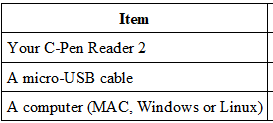
 Check
Check

Go to Settings/System Information/Version and check Software version.
Go to Settings/System Information/Internal Storage and check Internal memory (4GB or 8GB).
 Upgrade options
Each upgrade may take 5-20 minutes to complete.
In case upgrade fails - check our troubleshooting guide.
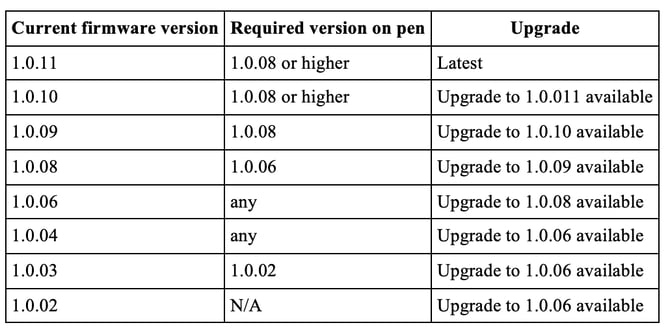
ReaderPen upgrades are incremental and it is required to walk through them all starting from the version currently installed.
🔢 Upgrade to 1.0.11
Roman numbers 1-39 are blocked from being read aloud in Exam Lock mode.
This update consists of two essential steps that must be completed in the specified order.
Download: 1.0.11.009 upgrade file
- Download and unzip the 1.0.11 upgrade file. Strictly follow the instruction in the readme file.
- Connect your Reader 2 to your computer in U-disk mode. Copy updatesys_1.0.11.002.BIN to the Reader 2 USB disk. This upgrade must be done first.
- Eject the Reader 2 disk.
- On the pen, go to Settings/System Settings/Software upgrade, select Yes to confirm, and wait for the upgrade to complete.
- Reconnect your Reader 2 to your computer in U-disk mode. Copy updatesys_C610R_1.0.11.009.BIN to the Reader 2 USB disk.
- Eject the Reader 2 disk, then use Settings/System Settings/Software upgrade on the pen to confirm and complete the second upgrade.
Important: Complete all step in order. Failure to do this may result in permanent damage to your C-Pen Reader 2.
 Upgrade to 1.0.10
Upgrade from any version of Reader 2.
Release date: May 2025
Download: 1.0.10 upgrade file
- Download and unzip the 1.0.09 upgrade file.
- Make sure your Reader 2 current version is 1.0.08 or higher.
- Power up Reader 2 and connect it by USB to your computer.
- When options Keyboard, U-disk, Charge show up, use nav keys to move arrow to point at U-disk and then press OK button. Reader 2 will now appear as a detachable disk on your computer.
- On your computer, locate your unzipped upgrade file on your computer and copy updatesys_1.0.10.001.BIN to your Reader 2.
- On your computer, eject Reader 2 disk from your computer and detach the USB cable.
- On Reader 2, navigate to Settings/System Settings/Software upgrade.
- Press OK button to select and use nav button to select YES and press OK button again.
 Upgrade to 1.0.09
Upgrade from any version of Reader 2.
Release date: January 2024
Download: 1.0.09 upgrade file
- Download and unzip the 1.0.09 upgrade file.
- Make sure your Reader 2 current version is 1.0.08.
- Power up Reader 2 and connect it by USB to your computer.
- When options Keyboard, U-disk, Charge show up, use nav keys to move arrow to point at U-disk and then press OK button. Reader 2 will now appear as a detachable disk on your computer.
- On your computer, locate your unzipped upgrade file on your computer and copy updatesys_1.0.09.014.BIN to your Reader 2.
- On your computer, eject Reader 2 disk from your computer and detach the USB cable.
- On Reader 2, navigate to Settings/System Settings/Software upgrade.
- Press OK button to select and use nav button to select YES and press OK button again.
 Upgrade to 1.0.08
Upgrade from any version of Reader 2.
NOTE - this is a large upgrade and may take 10-20 minutes to complete.
Download: 1.0.08 upgrade file
- Download and unzip the 1.0.08 upgrade file.
- Make sure your Reader 2 current version is 1.0.06.
- Power up Reader 2 and connect it by USB to your computer.
- When options Keyboard, U-disk, Charge show up, use nav keys to move arrow to point at U-disk and then press OK button. Reader 2 will now appear as a detachable disk on your computer.
- On your computer, locate your unzipped upgrade file on your computer and copy updatesys_1.0.08.009.BIN AND sysdict.BIN to your Reader 2.
- On your computer, eject Reader 2 disk from your computer and detach the USB cable.
- On Reader 2, navigate to Settings/System Settings/Software upgrade.
- Press OK button to select and use nav button to select YES and press OK button again.
 Upgrade to 1.0.06
Upgrade from any version of Reader 2.
NOTE - this is a large upgrade and may take 10-20 minutes to complete.
Download: 1.0.06-full upgrade file
- Download and unzip the 1.0.06 upgrade file.
- Power up Reader 2 and connect it by USB to your computer.
- When options Keyboard, U-disk, Charge show up, use nav keys to move arrow to point at U-disk and then press OK button. Reader 2 will now appear as a detachable disk on your computer.
- On your computer, locate your unzipped upgrade file on your computer and copy updatesys_1.0.06.001.BIN AND sysdict.BIN to your Reader 2.
- On your computer, eject Reader 2 disk from your computer and detach the USB cable.
- On Reader 2, navigate to Settings/System Settings/Software upgrade.
- Press OK button to select and use nav button to select YES and press OK button again.
 Upgrade to 1.0.04
Upgrade from any version of Reader 2.
NOTE - this is a large upgrade and may take 10-20 minutes to complete.
Download: 1.0.04-full upgrade file
- Download and unzip the 1.0.04 upgrade file.
- Power up Reader 2 and connect it by USB to your computer.
- When options Keyboard, U-disk, Charge show up, use nav keys to move arrow to point at U-disk and then press OK button. Reader 2 will now appear as a detachable disk on your computer.
- On your computer, locate your unzipped upgrade file on your computer and copy updatesys_1.0.04.012.BIN AND sysdict.BIN to your Reader 2.
- On your computer, eject Reader 2 disk from your computer and detach the USB cable.
- On Reader 2, navigate to Settings/System Settings/Software upgrade.
- Press OK button to select and use nav button to select YES and press OK button again.
 Upgrade to 1.0.03
Current version MUST be 1.0.02
Download: 1.0.03 upgrade file
- Download and unzip the 1.0.03 upgrade file.
- Power up Reader 2 and connect it by USB to your computer.
- When options Keyboard, U-disk, Charge show up, use nav keys to move arrow to point at U-disk and then press OK button. Reader 2 will now appear as a detachable disk on your computer.
- On your computer, locate your unzipped upgrade file on your computer and copy updatesys_1.0.03.005.BIN AND sysdict.BIN to your Reader 2.
- On your computer, eject Reader 2 disk from your computer and detach the USB cable.
- On Reader 2, navigate to Settings/System Settings/Software upgrade.
- Press OK button to select and use nav button to select YES and press OK button again.