
Before you upgrade
Make sure you have
- Your ExamReader
- A micro-USB cable
- A computer (MAC, Windows or Linux)
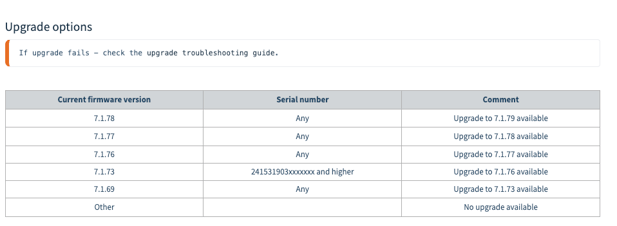
Check
- Current ExamReader software version
Go to Settings/System Information/Version and check Software version.
- Your ExamReader serial number
Serial number is printed on the ExamReader box and on the back side of the ExamReader itself.
Upgrade to 7.1.79
Download: 7.1.79 upgrade file
- Unzip the downloaded file.
- Power up ExamReader and connect it by USB to your computer.
- On ExamReader, navigate to Settings\System Information\Version and press MENU button. Now, ExamReader will show up as a disk on your computer. If it does not appear, check File Manager (Windows) or Finder (MAC) for a portable disk.
- Locate your unzipped upgrade file on your computer and copy sysdict.BIN and updatesys_7.1.79.BIN to your ExamReader.
- Eject ExamReader disk from your computer.
- Detach the ExamReader USB cable from your computer.
- Press ExamReader OK button three (3) times to trigger the update.
Upgrade to 7.1.78
Download: 7.1.78 upgrade file
- Unzip the downloaded file.
- Power up ExamReader and connect it by USB to your computer.
- On ExamReader, navigate to Settings\System Information\Version and press MENU button. Now, ExamReader will show up as a disk on your computer. If it does not appear, check File Manager (Windows) or Finder (MAC) for a portable disk.
- Locate your unzipped upgrade file on your computer and copy updatesys_7.1.78.BIN to your ExamReader.
- Eject ExamReader disk from your computer.
- Detach the ExamReader USB cable from your computer.
- Press ExamReader OK button three (3) times to trigger the update.
Upgrade to 7.1.77
Download: 7.1.77 upgrade file
- Unzip the downloaded file.
- Power up ExamReader and connect it by USB to your computer.
- On ExamReader, navigate to Settings\System Information\Version and press MENU button. Now, ExamReader will show up as a disk on your computer. If it does not appear, check File Manager (Windows) or Finder (MAC) for a portable disk.
- Locate your unzipped upgrade file on your computer and copy updatesys_7.1.77.BIN to your ExamReader.
- Eject ExamReader disk from your computer.
- Detach the ExamReader USB cable from your computer.
- Press ExamReader OK button three (3) times to trigger the update.
Upgrade to 7.1.76
This is a large update and requires 4 iterations.
Download: 7.1.76 upgrade file
- Unzip the downloaded file.
- Power up ExamReader and connect it by USB to your computer.
- On ExamReader, navigate to Settings\System Information\Version and press MENU button. Now, ExamReader will show up as a disk on your computer. If it does not appear, check File Manager (Windows) or Finder (MAC) for a portable disk.
- Locate your unzipped upgrade file on your computer and copy \[..]\step1\sysdict.BIN and \[..]\step1\updatesys_7.1.76.BIN to your ExamReader.
- Eject ExamReader disk from your computer.
- Detach the ExamReader USB cable from your computer.
- Press ExamReader OK button three (3) times to trigger the update.
Repeat step 2-7 and for each iteration, replace the files in step 4 with
\[..]\step2\sysdict.BIN
\[..]\step3\sysdict.BIN
\[..]\step4\sysdict.BIN
Upgrade to 7.1.73
Download: 7.1.73 upgrade file
- Unzip the downloaded file.
- Power up ExamReader and connect it by USB to your computer.
- On ExamReader, navigate to Settings\System Information\Version and press MENU button. Now, ExamReader will show up as a disk on your computer. If it does not appear, check File Manager (Windows) or Finder (MAC) for a portable disk.
- Locate your unzipped upgrade file on your computer and copy updatesys_7.1.73.BIN to your ExamReader.
- Eject ExamReader disk from your computer.
- Detach the ExamReader USB cable from your computer.
- Press ExamReader OK button three (3) times to trigger the update.