My C-Pen TS1 does not scan (Windows)
-
Why does my C-Pen TS1 not scan on Windows?
If your C-Pen TS1 does not scan on Windows, the most common cause is a Windows Camera Privacy setting that blocks app access to the device. Follow the steps below to resolve this.
How do I fix C-Pen TS1 scanning on Windows?
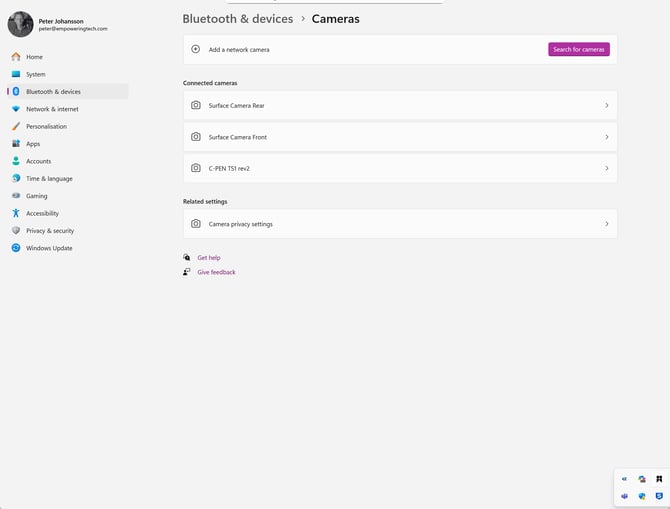
Make sure that apps are allowed to access the TS1 (Camera Privacy settings). -
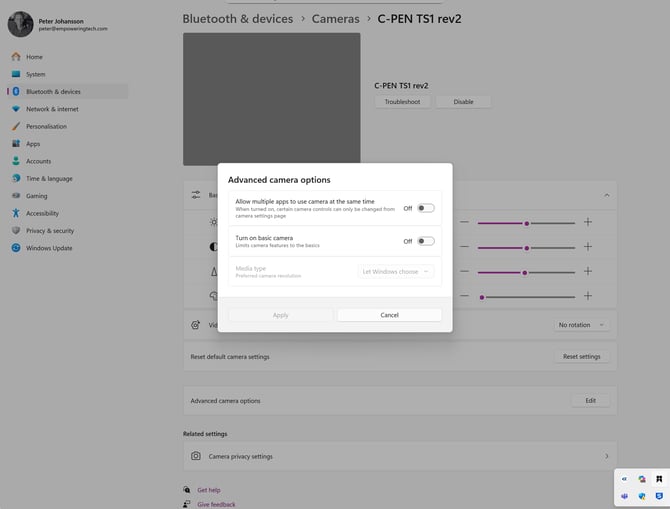
Disable “Allow multiple apps to use camera at the same time". 3. Close the Windows Settings window, then reopen your C-Pen TS1 scanning application and attempt to scan again to confirm the issue is resolved. If the C-Pen TS1 still does not scan after completing the steps above, try the following: - Disconnect and reconnect the C-Pen TS1. - Restart your computer and repeat steps 1–3. - Ensure the C-Pen TS1 driver is installed and up to date. - Contact support if the problem persists.